Top 10 Voice Changers for Roblox in 2025
This guide reviews the top 10 voice changers for Roblox in 2025 and helps players, streamers, creators and parents choose the right tool and set it up. It explains why people use voice changers (roleplay, privacy, entertainment, moderation), the five evaluation criteria (real‑time performance, voice quality, ease of setup, compatibility, safety), setup steps for PC and mobile, safety and ethical concerns for parents, common mistakes, and sound‑improvement tips. Recommendations include Voicemod and Voxal for users, MorphVOX or OBS+VST for pros, and Clownfish or Scramby for parents/free users. The purpose is a concise roadmap to pick, configure and use voice changers responsibly.
Roblox players, content creators, streamers, and parents — if you've been hunting for the best way to spice up in-game chat or protect a child's identity, voice changers are a common go-to. In 2025 there are more options than ever. Some are free, some are pro-level, and some work in real time with minimal fuss. I've tested a bunch and helped friends set up systems for streams and roleplay sessions, so I want to share what actually works and what to avoid.
This guide walks through the top 10 voice changers for Roblox, criteria to pick the right one, setup tips for PC and mobile, safety pointers for parents, and a few common mistakes people make. I kept things practical and simple. If you just want a quick recommendation, Voicemod and Voxal remain solid picks for most players. Keep reading if you want a deeper look.
Why use a voice changer on Roblox?
People use a roblox voice changer for a few basic reasons:
- To roleplay. Switching between characters gives your game more personality.
- To protect privacy. Younger players may want to hide their real voice.
- To entertain. Streamers use voices for funny bits or characters.
- To moderate. Community moderators sometimes use voice changes to avoid doxxing or harassment.
I've noticed the best use cases mix legit safety with fun. If someone uses a voice changer to harass or impersonate, that's a problem. So pick tools that are safe and easy to manage.
How I chose this list
Not all voice changers are built the same. I evaluated each tool on five things:
- Real-time performance. Roblox is live, so latency matters.
- Voice quality. Does it sound natural or robotic?
- Ease of setup. Can a parent or streamer get going in 10 minutes?
- Compatibility. Works on PC, Mac, mobile, or with streaming software?
- Safety and privacy. What data does the app collect? Is it kid-friendly?
I have picked out a few tools that offer free or freemium versions. In contrast, some are for creators who require studio, level effects and hence, these are paid options. Each item description contains a brief installation guide and typical mistakes to avoid for you to instantly find the voice changer best suited for the roblox voice changer free, roblox voice changer be solution, or a real, time roblox voice changer that you may want.
Top 10 Voice Changers for Roblox in 2025
Below are the products I consider best for different combo groups (players, and creators) for 2025, ranked by popularity. Besides platforms and pricing, each product description explains the pros and cons related to Roblox and the essential steps for the setup.
1. VoicemodPlatforms: Windows, Mac support through third party workarounds
Pricing: A free version with loads of voices; a Pro plan for the full set of features and library
Reason to choose it: Voicemod has been the first choice for many streamers and gamers. It operates live, syncs with Discord, OBS, and audio routing tools smoothly, and offers a vast collection of voices and effects. For roleplay, the voices are natural enough, and the neat modulation is added without the robot's sound.
Quick setup tip:
1. Download and install Voicemod
2. Choose it as the microphone in your Windows sound settings
3. Select the same device in Roblox (or your streaming software).
Keep the delay setting low and check in a private server.
Common pitfalls: The selection of free voices is very small, and some effects contribute to the background noise. So if you are a parent, allow only those voices you are sure of and be present for the first sessions to supervise.
2. Voxal Voice Changer Platforms: Windows, Mac
Price: Free for personal use; paid for commercial use
What brought it in the top: Voxal is small and versatile. In addition to real, time voices, it also supports recording of pre, made voices if you want to do your recording first. You can link effects that are very useful if you want a unique character voice. It is operating as a system, level input, so Roblox can easily find it.
Quick setup tip: Download and install Voxal, pick a voice preset, then set "Voxal Virtual Audio Device" as your Windows microphone. Try Roblox chat to see if the voice is coming through.
Typical problems: The interface of the application looks old, school. If you or your kid overindulge with effect stacking, the voice could become totally unrecognizable.
3. MorphVOX Pro
Platforms: Windows, Mac
Price: Paid license, often on sale
Why it made the list: MorphVOX Pro is a veteran. It has a polished sound engine and great noise reduction. Streamers like it for clean, consistent character voices. It also integrates with hotkeys so you can switch voices on the fly during streams.
Quick setup tip: After installation, calibrate the noise reduction to your mic. Set MorphVOX as your input device in Roblox and your streaming software. Use hotkeys to change voices without alt-tabbing.
Common pitfalls: It costs money and the learning curve is steeper than some newer apps. But for pro streamers it's worth it.
4. Clownfish Voice Changer
Platforms: Windows
Price: Free
Why it made the list: It's free and simple. Clownfish sits at the system level so it works with most chat apps. It includes basic voices like male, female, robot, and pitch shifts. For quick experiments or for parents who don't want to spend money, this is a practical choice.
Quick setup tip: Install Clownfish and restart your computer. Set the Clownfish microphone as your default input. Open Roblox and test your voice in a private session.
Common pitfalls: The voice quality is not as natural as paid options. Also, Clownfish updates less often, so compatibility problems can pop up on new OS releases.
5. AV Voice Changer Software
Platforms: Windows Price: Various editions, including premium
Why it made the list: The tool is a real powerhouse for voice editing and live voice changing. You can also control the pitch, timbre, and resonance very accurately.
For example, if you want to create a special character voice, AV Voice Changer has the instruments for that.
Quick setup tip: Take advantage of the virtual audio driver it installs. Make that driver your microphone in Roblox. Explore the voice studio presets and save your own custom preset for instant use.
Common pitfalls: The plethora of features makes it difficult to navigate. When used by younger kids, it is better to just use a couple of presets and not go for deep customization.
6. iMyFone MagicMic Platforms: Windows, Mac
Price: Free trial with paid subscription options
Why it made the list: MagicMic is friendly to beginners. It has a modern interface, loads of character voices, and real-time performance that plays nicely with streaming tools. It also offers background sounds and voice effects for comedic timing.
Quick setup tip: Choose a voice effect and enable the "virtual audio device" mode. Then set that device in Roblox. Use the test room to verify clarity before jumping into a group voice chat.
Common pitfalls: Some popular voices are gated behind the paywall. The free plan still gives you enough to learn the ropes.
Platforms: Windows, Mac, Linux
Price: Variable depending on plugins
Why it made the list: This is for power users who want studio-level control. OBS supports VST plugins, and you can route audio through virtual audio cables to Roblox. Use quality pitch shifters, formant shifters, and EQ to craft unique voices.
Quick setup tip: Add an audio input capture in OBS, insert a VST plugin like Graillon for pitch control, then route output to a virtual audio cable. Set that cable as your mic in Roblox.
Common pitfalls: It's complicated. Expect a learning curve and occasional syncing issues between game audio and voice. This approach is best for streamers who want unique voices and can spend time configuring the setup.
Choosing the best voice changer for Roblox
There is no single best voice changer for roblox because needs vary. That said, ask yourself these questions first:
- Are you on PC or mobile?
- Do you need a free roblox voice changer, or can you pay for better sound?
- Do you stream or record, or just want in-game chat effects?
- Is low latency critical for live roleplay?
- Are you a parent who needs safety controls?
In my experience, most casual players do fine with Voicemod or Voxal. Streamers and creators who need custom voices and hotkeys tend to prefer MorphVOX or OBS with VST plugins. Parents often choose Clownfish or Scramby for their simplicity and limited access to advanced features.
Safety and privacy: what parents should know
As a parent myself, I get why you might be cautious about voice changers. They can provide anonymity, which is good, but anonymity can also hide bad behavior. Here are some practical tips:
- Test the app yourself first. Make sure it doesn’t leak personal data or require unnecessary permissions.
- Use family accounts and enable Roblox chat filters and privacy settings.
- Prefer local processing tools that do not send voice data to a server when privacy matters.
- Keep voice changer apps updated and check reviews for safety complaints.
- Talk to your child about responsible use. Explain that changing voice is for fun, not for bullying or impersonation.
A quick note: some web-based changers process audio on servers. They might be fine, but if you want to avoid cloud processing entirely, pick a local application like Voxal or Voicemod's desktop client.
How to set up a voice changer for Roblox on PC
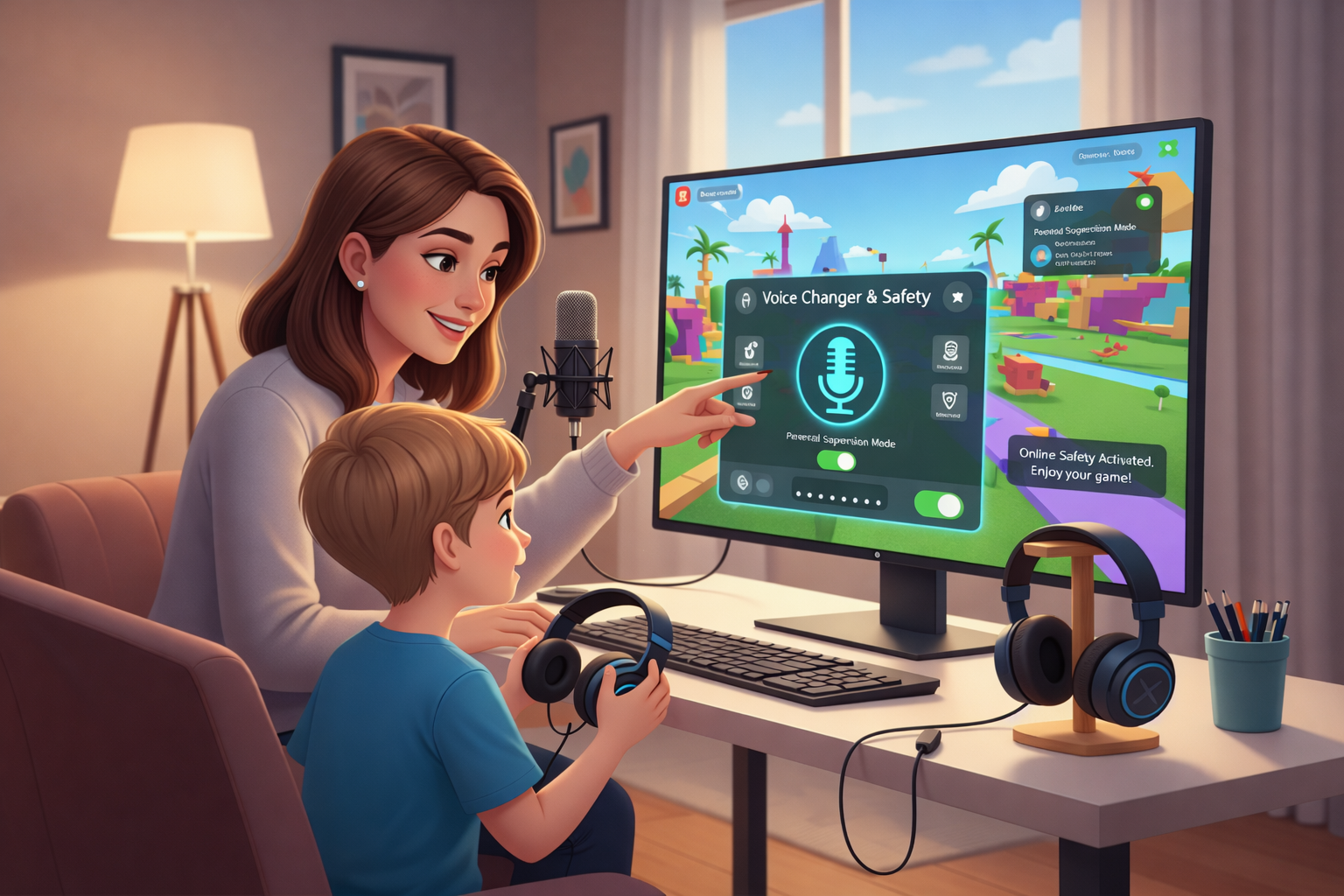
Most PC setups follow the same pattern. Here are the common steps I use with students and streamers.
- Install the voice changer app and any virtual audio driver it provides.
- Open your system sound settings and set the app's virtual driver as the default input device.
- Open Roblox and go to settings. Select the virtual audio device as your microphone.
- Test in a private server or with a friend and adjust levels to avoid clipping.
- If streaming, route the audio into OBS or your streaming software so viewers hear the altered voice too.
Quick troubleshooting tips: If Roblox still hears your raw voice, restart the game after changing the system microphone. Also check that other apps aren’t overriding your mic settings. In my experience, restarting the system once often fixes stubborn driver switches.
How to set up on mobile
Mobile is messier. Roblox mobile and iOS/Android permission models often prevent apps from sharing the mic. Here are simple paths that usually work:
- Find a mobile voice changer that can run in the background and share the microphone with Roblox. Not all do.
- Use a hardware solution. Plug in a small mixer or external mic with built-in effects.
- Use a secondary device. Run the voice changer on a phone or tablet and route the audio in through a mixer to the gaming device.
I recommend testing in a private session. Mobile setups vary widely and often require trial and error. If you need mobile performance, try apps that advertise explicit compatibility with game apps.
Common mistakes people make
I've helped a few friends troubleshoot issues, and some mistakes keep recurring. Avoid these.
- Not testing before joining public games. Always test in a private server to avoid awkward moments.
- Stacking too many effects. That creates audio mush and may reduce clarity.
- Ignoring latency. Some web-based tools add delay that ruins timing in voice chat.
- Using a noisy microphone. No amount of pitch shift fixes a poor input signal. Start with a decent mic and reduce background noise first.
- Not checking privacy settings. Some tools upload voice data for processing. If you want local processing, confirm it in the app's documentation.
Tips to make your voice changer sound better
- Use EQ to reduce sibilance and low-frequency rumble. A little roll-off below 80 Hz helps.
- Adjust formants, not just pitch, for realistic gender or age shifts.
- Add subtle reverb or room effects to avoid a flat synthetic sound.
- Keep a cheat sheet of hotkeys to switch voices quickly during streams.
- Record short clips and listen back at normal device volume. That tells you if the voice reads well.
Quick example: If you want a deeper villain voice, drop the pitch by 3 semitones and reduce the formant by 1 to avoid the voice sounding like it comes from a different mouth. Small changes go a long way.
Best free roblox voice changer options
If budget is the main concern, these are the most practical free options:
- Clownfish Voice Changer — simple and free for Windows.
- Voicemod free tier — good selection to start with.
- Voxal free for non-commercial use — flexible presets.
- Discord bots — free but requires routing.
Free tools are fine for casual use. For creators who need consistent audio quality, upgrading to a paid tier usually pays off quickly.
Real-time voice changer for Roblox: what to expect
Real-time performance varies. Expect the best results with desktop apps that install virtual drivers. Web-based tools work, but they rely on internet speed and can add latency. If you need a real-time voice changer for roblox during competitive play or live roleplay, prefer a locally installed solution like Voicemod or MorphVOX.
Latency under 100 milliseconds is usually fine for most voice chat. If you notice noticeable echo or talk-over delays, check routing and close bandwidth-heavy applications.
Which one is the best voice changer for Roblox in 2025?
If I had to pick one overall recommendation, it would be Voicemod for most users. It balances quality, ease of setup, and compatibility. For creators who want studio-level control, MorphVOX or an OBS + VST setup is best. For parents and free users, Clownfish and Voxal are reliable.
That said, the best choice depends on your priorities. Are you streaming? Pick a pro tool. Are you a parent who wants simple safety? Go basic and test everything together.
Sample quick setups
Here are two simple recipes you can try right now.
Quick setup for streamers (Windows)
- Install Voicemod and OBS.
- Set Voicemod Virtual Device as Windows default mic.
- In OBS, add an Audio Input Capture and select the Voicemod device.
- Open Roblox, set Voicemod as the game's mic if needed, and test in a private server.
Tip: Use Voicemod's hotkeys to switch voices while streaming without alt-tabbing.
Quick setup for parents (Windows)
- Install Clownfish Voice Changer.
- Set Clownfish as the system microphone.
- Create a private server in Roblox and test each voice together with your child.
- Discuss rules about not using the voice changer to confuse or bully others.
Tip: Keep the software updated and agree on a small handful of safe voices kids can use.
Legal and ethical notes
Using a roblox voice changer is fun, but it's not a free pass to deceive or harass others. Many platforms, Roblox included, have community rules against impersonation, doxxing, or abusive behavior. Here are a few commonsense guidelines:
- Don’t impersonate staff, creators, or other players in a way that harms them.
- Be transparent if you're recording other people for content creation, and get permission when required.
- Use voice changing to enhance roleplay and safety, not to mislead in ways that cause damage.
In practice, treat voice changers like costumes. They're great for performing a part, but you still follow the same rules as you would in real life.
Final thoughts
Voice changers are a fun and useful tool for Roblox players, streamers, and parents. They let you get creative, protect privacy, or create polished character voices. Pick a tool that matches your needs. If you want something quick and free, try Voicemod's free tier or Clownfish. If you need control and pro-grade sound, consider MorphVOX or an OBS + VST setup.
One last tip from personal experience: always test your setup in a private server and keep a backup plan if latency or driver issues pop up. It saves a lot of awkward moments.
Read more:AI Customer Service: Where Human Expertise Meets Automation
Faqs
1. Is it a breach of Roblox rules to use a voice changer?
Roblox doesn't clearly state the use of a voice changer as a violation of its rules. Still, users are obliged to adhere to the community guidelines and not use voice changers to harass, impersonate or engage in abusive behavior.
2. Which free voice changer works best for Roblox?
Among the best free offerings are Voicemod's free version, Clownfish Voice Changer, and Voxal for personal usage. These apps are good enough to be used for casual gaming and simple voice effects.
3. Do voice changers modify voices during a Roblox game in real time?
Yes, quite a few desktop voice changers convert voice in real time by means of virtual audio drivers. Applications installed on your device will generally provide less delay compared to online applications.
4. Can kids safely use voice changers?
Voice changers may be safe if parents oversee the installation, select tools that keep the conversion on the user's device, and activate Roblox's privacy and chat safety features.
5. Is it possible to use a voice changer for mobile Roblox?
Mobile voice changers work sometimes but iOS and Android limits can cause problems with one app sharing the microphone with another. Desktop arrangements are, in general, more trustworthy as far as the outcome of the work is concerned.